A Pinterest board lives on Pinterest’s servers, not on yours. If boards are part of how you work — client moodboards, a reference library, a renovation you have been planning for two years — it makes sense to keep the images on your own disk too.
This page compares the three ways to back up Pinterest boards, says plainly what each one gives you, and walks through exporting an entire board with PinBoardSaver, our Pinterest board downloader for Chrome.
Why back up your Pinterest boards
Years of collecting
A board built up over years can’t be put together again from memory. A copy on your own disk protects that work for the price of a few clicks.
Pins go dead
Pins can be taken down, and the pages they link to go offline. A board only shows what is still on Pinterest today; a backup keeps what you saved on the day you made it.
Accounts get suspended
Pinterest can deactivate an account it believes broke its rules. You then see a deactivation notice when you try to log in, and getting that reviewed means sending an appeal and waiting for an answer.
Save a board offline
Files on your disk open without a connection, drop into Photoshop, InDesign or Figma, go to a print shop, and can be handed to a client who doesn’t use Pinterest.
Outages happen as well: on 24 February 2026 and again in mid-May 2026, many users reported that their boards would not load or seemed to have vanished. When a board is the brief for work due that day, a local copy keeps you going. Source: PiunikaWeb
Three ways to back up or export a Pinterest board
They are not interchangeable: the first is a copy of your personal data as Pinterest packages it, the second a few files, the third the board itself.
Request your data from Pinterest
Pinterest lets you request a copy of your personal data at any time: Settings → Privacy and data → Request your data → Start request. Pinterest says it may take up to 48 hours to email you the download link, which is sent through its provider SendSafely.
Best for: an official record of your whole account.
Pinterest’s help page doesn’t list what the archive contains, so open yours and check whether it holds the image files themselves or only data about your pins. The help page also describes no option to export a single board.
Save pins by hand
Open a pin, save the image with your browser’s “Save image as…”, go back, open the next one. It costs nothing and needs nothing installed.
Best for: a handful of pins.
It is one pin at a time, the files arrive with meaningless names, and the board’s sections are lost, so you rebuild the folders yourself. For a single pin, our free online tool does the job without an extension:
Export the board with PinBoardSaver
PinBoardSaver is a Pinterest backup tool for Chrome. It reads the board you have open and builds a ZIP in your browser: a folder for every section, numbered files named after each pin, and a text file with the board’s name, URL and pin counts. The same screen can turn those pins into a PDF, one collage image or a copy for Figma.
Best for: whole boards, boards with sections, and anything you will reuse in design work.
It needs Chrome on a desktop computer. The free plan saves up to 20 pins per download; Premium removes the cap.
What a board export contains
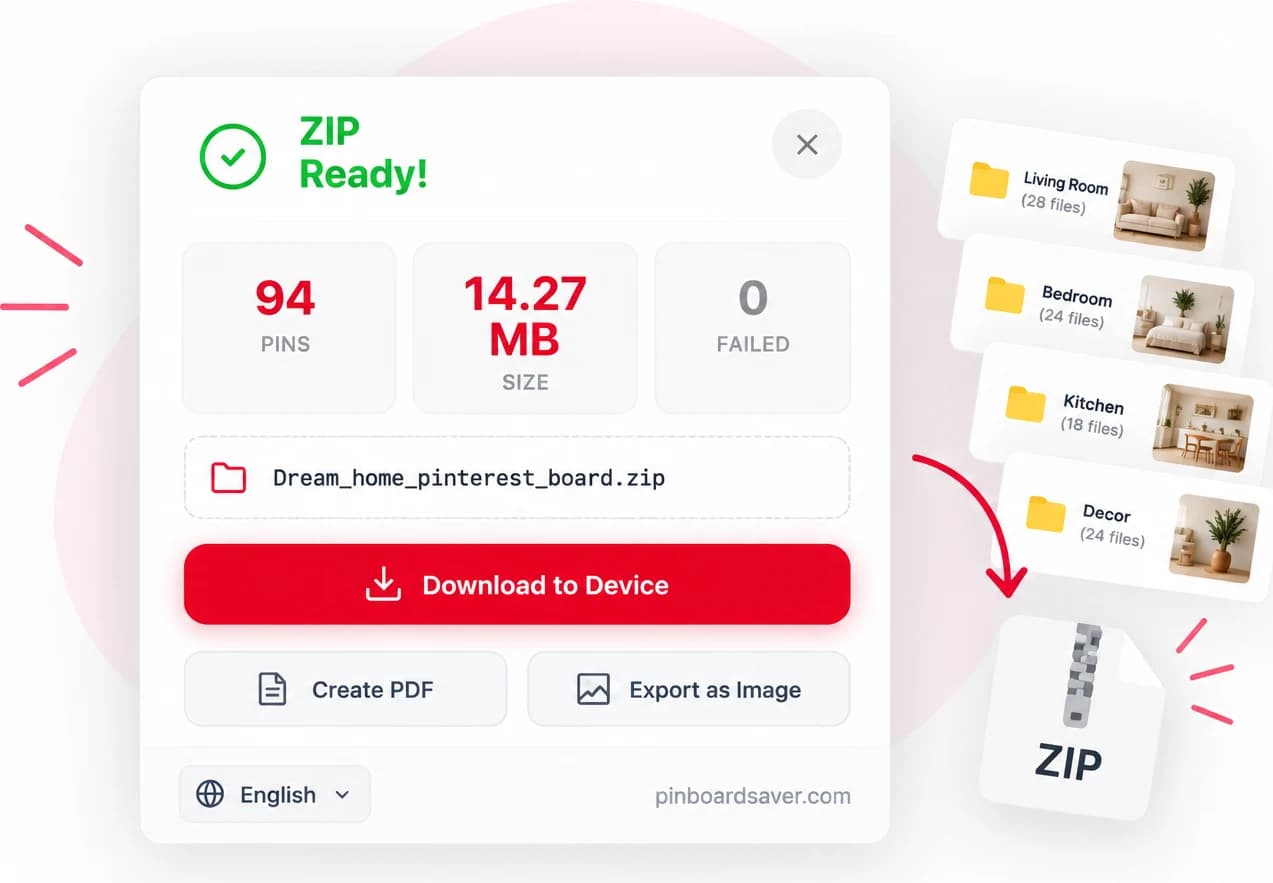
Exporting a board with “Start Download” gives you one archive per board, laid out like this:
- The ZIP is named after the board: <board name>_pinterest_board.zip.
- Every section becomes a folder with the section’s name. Pins that are not in a section sit in the root of the ZIP.
- Files are named <number>_<pin title>_<pin ID>, and numbering starts again at 1 in each folder. With the ID you can find the pin again at pinterest.com/pin/ followed by that ID.
- 0_info.txt in the root records the board’s name and URL, its owner, the export date and queued pin counts per section. Those counts are written before media downloads; check the result screen and extracted files for failed or incomplete downloads.
- GIFs stay animated, and video pins are saved as MP4 when Pinterest provides an MP4 file.
- From the same screen you can add a PDF (A4; one pin per page, or a collage with 2–20 columns in portrait or landscape), a single collage image in PNG, JPG or WebP, or a copy for the Figma plugin.
Picking pins by hand with “Select Pins Manually” produces a simpler archive: a flat ZIP without section folders, with the details in info.txt.
How to export a Pinterest board, step by step
Exporting an entire board takes six steps; the last one saves the ZIP to your computer.
- 1
Install PinBoardSaver
Add the extension from the Chrome Web Store. It is free to install and works in Chrome on a desktop computer.
- 2
Open your board on Pinterest
In Chrome, go to Pinterest, signed in as usual, and open the board you want to back up.
- 3
Click the PinBoardSaver icon
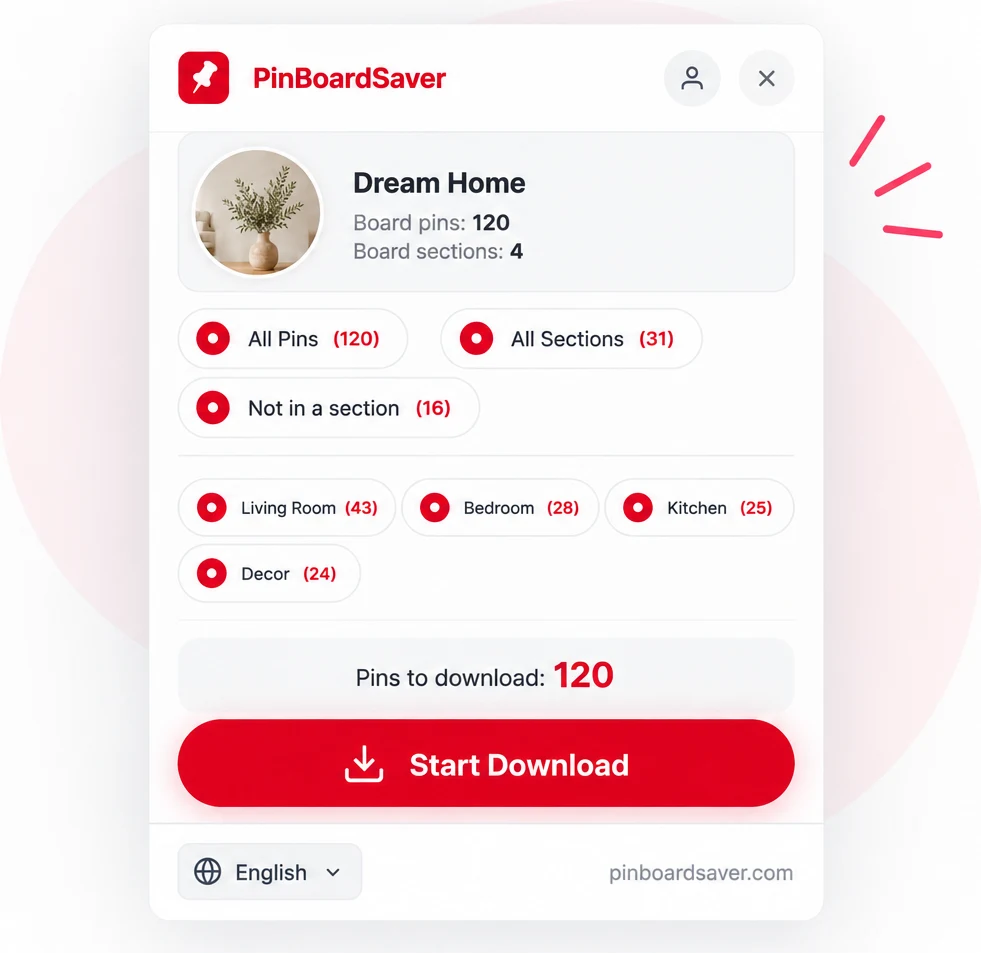
Click the extension’s icon in the Chrome toolbar. The panel shows the board’s name, its pin count and its sections.
- 4
Choose what to export
“All Pins” is ticked by default, which means the entire board. To export part of it, untick “All Pins” and tick only the sections you need; “Not in a section” covers the pins outside every section.
- 5
Click “Start Download”
The extension fetches the pins and builds the ZIP in your browser, showing a running count as it goes.
- 6
Click “Download to Device”
When the screen says “ZIP Ready!”, click “Download to Device” to save the archive. “Create PDF”, “Export as Image” and “Copy for Figma” are on the same screen and work on the pins you just fetched.
Free plan and Premium
The free plan saves up to 20 pins per download. “Start Download” takes the first 20 pins of what you ticked; with “Select Pins Manually” you choose which 20.
Premium removes the cap, so the entire board exports in one download. “Start Download” saves the original files on both plans; with “Select Pins Manually” the free plan saves a medium-size copy and Premium saves the original. Premium also covers the pins on your profile that are not saved to a board.
Questions about backing up Pinterest boards
Can you export Pinterest boards?
Yes, in two ways. Pinterest lets you request a copy of your personal data, and says the download link can take up to 48 hours to arrive by email. To export one board as image files you need a Pinterest backup tool such as PinBoardSaver: it saves the board as a ZIP with a folder per section, and can also export it as a PDF or copy it to Figma.
How do I export an entire Pinterest board?
Open the board in Chrome, click the PinBoardSaver icon, leave “All Pins” ticked, click “Start Download” and then “Download to Device”. On the free plan one download holds up to 20 pins; Premium exports the entire board at once.
Does the backup keep my board’s sections?
Yes. Every section becomes a folder with the section’s name, and pins that are not in a section go to the root of the ZIP. File numbering starts again in each folder.
Can I export a Pinterest board to PDF?
Yes. After the download, click “Create PDF” on the result screen and choose “One per page” or “Collage”. The PDF is A4 and is made from the pins you just fetched.
Does it work with secret boards?
Secret-board exports have not been verified yet. Before relying on one as a backup, try a small download while signed in to the account that owns the board and check the extracted files.
How often should I back up my boards?
A backup is a snapshot of the board on the day you make it, and nothing runs on a schedule. A workable habit: export a board when its project ends, and re-export the boards you are still adding to every month or two. 0_info.txt records the date of each export, so you can tell the copies apart.
Is this only for my own boards?
It is meant for your own boards and for boards you have permission to keep a copy of, such as a client’s board for a project or a group board you contribute to. The images on Pinterest belong to their creators and a backup doesn’t change that, so check the license before you publish or sell anything made with them.